ChatGPT and Claude for Construction Managers: the Ultimate Guide
How construction managers connect Claude or ChatGPT to ProjectTeam with MCP: setup, security, and real construction workflows you can run from a chat.

ProjectTeam.com connects to Claude, ChatGPT, Copilot and Gemini so your team can use AI with real project data. Ask questions, create RFIs and field reports, and build dashboards, all within the permissions your team already has.
Most questions a project team asks during the day are already answered somewhere in ProjectTeam.com. Connecting an AI assistant puts those answers one request away.
Ask about a single record or look across an entire project, including:
Answers come from current ProjectTeam.com records, so each response reflects what the platform shows at that moment.
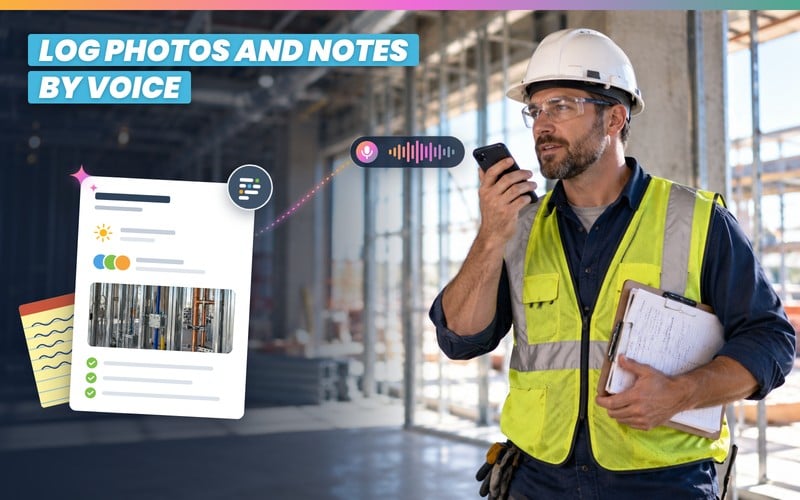
Project information can live in various formats, such as a quick conversation, handwritten note or a photo. Connecting an AI tool turns any of those into a record in ProjectTeam.com.
Speak an update or share a photo to create records, including:
Each record lands in ProjectTeam.com with details in the right fields, so information reaches the project the same day it's captured.

Adding a record or updating an existing one takes a single request to your AI tool. Tell it what you need, and each field gets filled in for you to review.
Create or update records on supported forms, including:
Records created through AI appear in the platform with the same activity history as every other record.
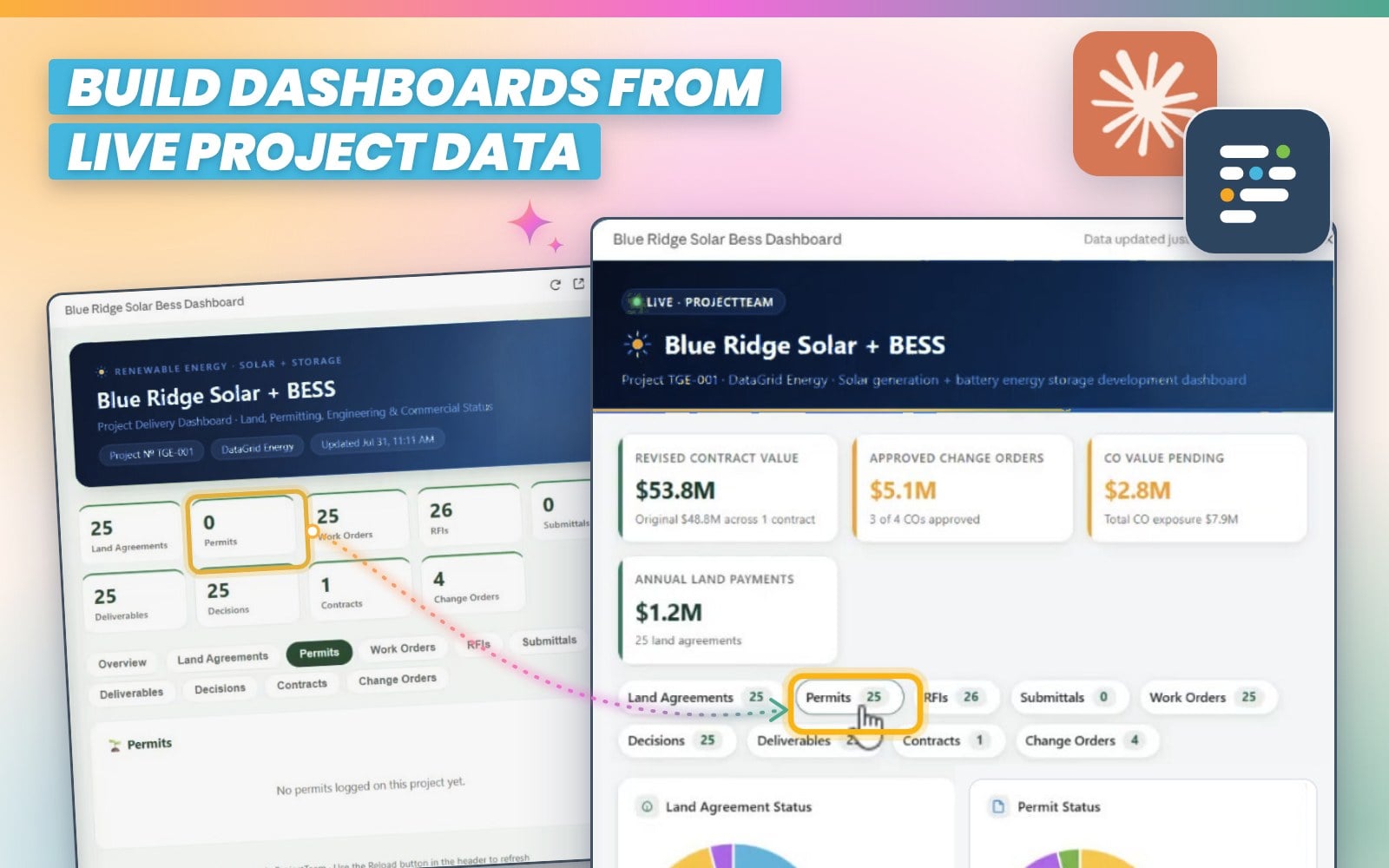
An AI tool connected to ProjectTeam.com can create dashboards from your project data. Once it's built, you can save the dashboard in tools like Claude and refresh it anytime to see the latest numbers.
Dashboards can include:
For recurring reporting, ProjectTeam.com also includes pre-built reports and a drag-and-drop report builder. AI-generated dashboards and scheduled reports draw from the same project data.
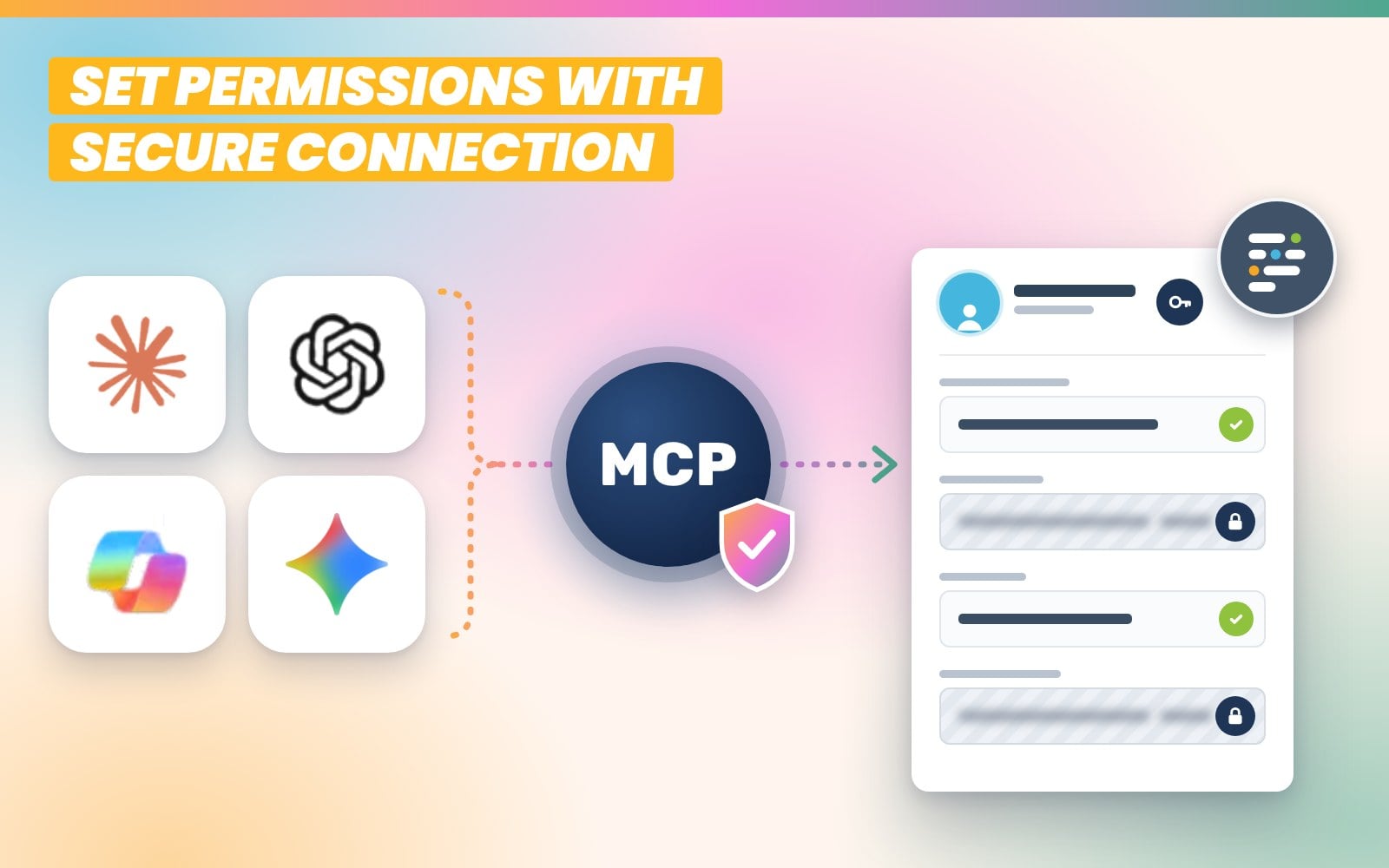
Each subscriber connects their AI tool by signing in to ProjectTeam.com, so their password stays private. From there, it can only view or change the projects, forms, and fields the user already has access to.
Security controls apply to every connection, including:
Each user can also disconnect their AI tool at any time, so control stays with your team.

Most questions a project team asks during the day are already answered somewhere in ProjectTeam.com. Connecting an AI assistant puts those answers one request away.
Ask about a single record or look across an entire project, including:
Answers come from current ProjectTeam.com records, so each response reflects what the platform shows at that moment.
Project information can live in various formats, such as a quick conversation, handwritten note or a photo. Connecting an AI tool turns any of those into a record in ProjectTeam.com.
Speak an update or share a photo to create records, including:
Each record lands in ProjectTeam.com with details in the right fields, so information reaches the project the same day it's captured.
Adding a record or updating an existing one takes a single request to your AI tool. Tell it what you need, and each field gets filled in for you to review.
Create or update records on supported forms, including:
Records created through AI appear in the platform with the same activity history as every other record.
An AI tool connected to ProjectTeam.com can create dashboards from your project data. Once it's built, you can save the dashboard in tools like Claude and refresh it anytime to see the latest numbers.
Dashboards can include:
For recurring reporting, ProjectTeam.com also includes pre-built reports and a drag-and-drop report builder. AI-generated dashboards and scheduled reports draw from the same project data.
Each subscriber connects their AI tool by signing in to ProjectTeam.com, so their password stays private. From there, it can only view or change the projects, forms, and fields the user already has access to.
Security controls apply to every connection, including:
Each user can also disconnect their AI tool at any time, so control stays with your team.
ProjectTeam.com's CoreLink Data Model™ keeps your project data connected. Here's how your team can put that data to work with AI:
✅ Keep using familiar AI tools: Work in the desktop, web, and mobile AI apps that your team opens every day.
✅ Connect in a few steps: Add the ProjectTeam.com MCP server to your AI assistant and sign in with existing credentials.
✅ Work from shared project records: Get answers that reflect what all stakeholders on the project have shared with you.
✅ Use your organization's custom forms: Create and retrieve records on the forms and fields your team set up.
✅ Keep one system of record: Every RFI, field report, and update made through AI saves directly to ProjectTeam.com.
✅ Included with the ProjectTeam.com platform: AI access is included for ProjectTeam.com Subscribers as part of the current platform price.
Ask how many RFIs are open, create a new RFI, or log a field report by speaking into your phone. The AI numbers each record, fills in the details, and can add a new field to a form when your team needs one.
Snap a photo of a handwritten field report, and the AI enters it into ProjectTeam.com for you. The AI can build a new custom form and fill it in from the photos for any items that don't have a matching form.
Turn the data your team already tracks into a dashboard in minutes. Describe what you want to see, and your AI assistant builds it with charts and logs you can search. Save the dashboard to run it with fresh records.
Find open items, deadlines, and key details in seconds.

Speak updates, notes, and new records into your phone.

Turn site photos and handwritten notes into project records.
Log RFIs and punch items or update their status.
Pull live project data into charts you can reuse.

Write status summaries and emails for owners in minutes.
Add new fields or custom forms with a request.
AI tools see only what each user can access.
The CoreLink Data Model™ connects owners, contractors, subcontractors, and design teams on the same shared project records in the ProjectTeam.com platform.
Each company controls what it shares, down to individual fields, and can add its own private fields to shared records. When AI works from connected data, answers reflect the full project, within each user's permissions and access.
There's been a lot of talk recently about connected systems or even common data environments and terms like that. I wanted to jump on real quick and talk about what that really means to project team and how our model is different than some of those other legacy solutions. To start off, I'm at the RFI Log View, just one of the different tools that you have in the platform. I can see on the left hand side is my user, Josh Whitmer, working for project team on a project called my Eastview Library Expansion Project. On the right side, I have my subcontractor, Bolt Electric. You can see also on the Eastview library expansion project, you do see that they have contributor access, meaning that they're joined in here as not a full user, but just kind of a, a subcontractor to me. And they're gonna work on some of the same core data. I will, in a little bit, upgrade the user and show some of the advantages of that, but we'll start here as a full user on the left and a contributor on the right. You can see looking at these views, my user has lots of RFIs. K? More than at least Lauren from her view. Lauren, on the right hand side, has those four RFIs. If I go in here and click into any of these, let's say confirmation of utility conflict locations, my user has access, Lauren does not. Even though we're on the same exact project, our access is a little bit different based on who's been shared that information. If I click into this view here, I see all of the information about this RFI number twenty five utility conflict locations. Again, Lauren doesn't have access to it. However, I can share to Lauren. So I'm gonna go ahead and say share, and I get this, window that pops up allowing me to share to groups or individual users. For now, I'm gonna say Bolt Electric. And if I check on this, I see Lauren is part of the company called Bolt Electric, and I'll say share. When I do that, it sends an email notification to Lauren, meaning that she has a new RFI available in her project. I'm going go ahead and refresh her screen. And now you see that RFI number twenty five is in Lauren's RFI group. Okay, so she has access to that RFI number twenty five now. The other really cool thing is if she clicks on that confirmation of utility conflict RFI, you can see what she has access to versus what I have access to. So she has an RFI number, a title, a question, an issue date, and an answer, and that's it. My user has RFI number, subcontractor RFI reference, priority, title, question, issue date, answered, issued by, due date, assigned to, closed, cost impact, schedule impact. So a lot more information that my user has access to than Lauren, and that's okay. We're still collaborating on the same core information, but our views are a little bit different based on what we have access to. So everything in Product Team is controlled by field level access and access to the actual records. What I'm gonna do now is I want to upgrade Lauren so that she has full access to the system and she can even create her own customizations that don't necessarily affect me, but allows her to manage business in the way that she needs to as well. So let me do a quick upgrade for Lauren, and I'm back as Lauren, and you can see that contributor banner has been removed from the top, list up there. So Lauren is upgraded now. What that means is Lauren can now configure Prog Team to manage her own business outside of who she's connected to. So Josh and Lauren are both connected on the same project. Lauren can go in now and manage the information that she needs to manage her business and doesn't have to muck up what Josh is doing on the left hand side. So for example, I can go in here or Lauren can go in here and say customize, assuming she's a project administrator for her organization and say customize. Then she can say new and she can add all kinds of fields to manage the RFIs the way that she needs to manage it on this project. Okay, so for example, she might go in here and say she wants to add an internal notes field that's just related to how she manages these RFIs. So I'm gonna say internal notes. And I'll put some help text in here and say, this is used for Bolt Electric, notes only. Okay. Do I wanna make a default value? Do I wanna make it required? No for now. I'll say next. Do I wanna give anybody else access? Maybe yes. Everybody from my organization or Lauren's, have reader access, both electric, but nobody else. So I'll say save. The other thing that I can do is say new again. So I can add as many fields as I want to manage information for Lauren the way that she needs to. She might also have some kind of cost impact or whatever it might be. So I'm gonna go down here and add like a currency field. I wanna say the Bolt Electric cost impact. Okay. So she's managing information that's relative to her, not necessarily the way that Josh needs to manage it. Okay. So I'll say next. Again, I'll give my organization, Bolt Electric, access to that and say save. K? If I go back to the view now, I could reorder those fields and make it look really nice for me. But if I go to that same RFI now, the confirmation of utility conflict, you can see here that we're looking at the same data, confirmation of utility conflict. However, our fields are different. Lauren is managing internal notes and we put that help text in there. And she also has that Bolt Electric cost impact. Josh has potential cost impact, scheduled days, and those are not connected. They're just over there. That's how he's managing the project. The main data, RFI title, subject, RFI number, that's connected. These other things are managed by their own organization. So I can go in here and say let's say, as Lauren, I'm gonna put an answer in here and say, this is the answer. I'll put in some internal notes and say, there was an issue with the design. Can't happen again. Need to double check next time. You know, whatever I wanna say there. And then the cost impact is two thousand five hundred dollars to her organization, and I can save that. So now Lauren has made edits to the form. If I go down to the activity history here, you can see the last thing that happened was Lauren added the answer, internal notes, and the Bolt Electric cost impact fields. Okay, the things that we just did. If I refresh Josh's screen here, or maybe I go back out and come back in, you can see here that an answer has been added by Lauren. Internal notes and Bolt electric cost fields are not anywhere to be found because those were things that Lauren was managing for her unique business processes. If I even go down to the activity here, I can see Lauren edited the answer field. So the thing that I could see, it does not tell me anything that she did that might be specific to her organization. So we're collaborating and, sharing core information, but everything else that might be unique to each individual stakeholders way that they do business is still just managed by them. Okay, so we have the single source of truth on that core data, but we're still managing things in our own way, which completely eliminates Lauren or myself having to manage things outside in a separate system where I'm just copying and paste pieces of information to the core system. No. Product team becomes the core system where everybody is collaborating on the same information. It is all real time in this truly common data environment view. I can even ask Josh go in here, go back to the view here, and I can say, you know, wait a second. What does Lauren have access to? So I can say view shared with. I can search for Lauren here, save you, and I can see here she does have access to this confirmation of utility, conflict, not RFI two nineteen or three twelve or o four, but the things that are grayed out are things that she doesn't have access to. So we're again, we're sharing some of the information that might be important for both of us, but we're also keeping information separate for things that don't really matter to those other organizations. Okay? So Product Team's unique collaboration model really helps organizations connect on projects, share common information between projects, but also, and most importantly, still allows each organization to manage the project in the way that they need to, that makes the most sense for them to run and be successful. Thank you.
How construction managers connect Claude or ChatGPT to ProjectTeam with MCP: setup, security, and real construction workflows you can run from a chat.
New Team Led by Principal AI Engineer Yuriy Myshkevych Will Drive Predictive Analytics, Project Intelligence, and Productivity Advancements Across...
The CoreLink Data Model™ unites owners, contractors, and design teams in one project record, powering next-generation analytics, automation, and AI...
AI in construction management starts with connected project data. See why a shared data model is what separates reliable AI outputs from unreliable...
A Common Data Environment done right keeps all parties in control of their data while sharing a single project record. See how ProjectTeam.com...
See how ProjectTeam's construction management platform connects every stakeholder on shared, secure data, with custom views and AI for construction...
AI-powered construction management software uses artificial intelligence to help your team find project information, create records, and report on progress faster.
Some platforms build their own AI into the software. ProjectTeam.com connects to the AI tools your team already uses, so you can work with live project data in plain language.
Start with the data. AI gives better answers when your project records are accurate, current, and kept in one place, so look for software your whole team keeps up to date.
If you want to bring your own AI tool, make sure the software connects to the ones your team already uses. Once connected, the AI should follow your existing permissions, read, create and update records, and keep a full audit trail.
On its own, an AI tool knows a lot about construction in general but has no access to your projects.
Connected to ProjectTeam.com, it can answer questions about your actual RFIs, punch lists, and field reports, and create records for you.
Because the CoreLink Data Model™ connects every organization on the project, those answers reflect the full project record, within each person’s permissions.
ProjectTeam.com connects through an MCP server. MCP is an open standard that gives AI tools a secure, permission-controlled way to look up and update information in other software.
You add the ProjectTeam.com MCP server to your AI tool, sign in with your ProjectTeam.com login, and start working. Follow the setup steps for Claude or ChatGPT.
For ChatGPT, yes. The connection uses Developer Mode, which is available on Plus, Pro, Business, Enterprise, and Edu plans.
Claude connects on desktop and web. On Claude Team and Enterprise plans, an organization owner may need to add the connector first.
Setup takes a few minutes. You add the ProjectTeam.com server to your AI tool and sign in. After that, you work in plain language, the same way you’d ask a coworker for an update. For ways to get better results, see our prompting tips for construction workflows.
During early release, email support@projectteam.com, and our team will enable the AI connection for your account and help you through setup.
The connection is available to ProjectTeam.com Subscribers, including Standard Users and Organization Administrators. Contributors can get full access by choosing to become a ProjectTeam.com Subscriber.
The AI pulls only the records needed to answer each request, based on what your account can access. Data is encrypted as it moves between ProjectTeam.com and your AI tool, and your project records stay in ProjectTeam.com.
Yes. Every record created or updated through AI is a standard ProjectTeam.com record with the same activity history as one entered by hand, including who made each change and when.
The AI tool you connect can create, update, and search RFIs, punch list items, field reports, directives, contract exhibits, and custom forms on every project you have access to.
Ask about a single job or look across several, like listing open RFIs on every active project. It can also read projects, documents, schedules, costs, action items, and contacts, share documents with the right share groups, and help administrators set up form types and fields.
Some actions stay in ProjectTeam.com, including deleting records, editing schedule and cost forms, creating projects, and managing users.